
วิธีเปิดใช้งาน Google Authentication (2FA) บน CoinUnited.io?
CoinUnited.io APP
1. ไปที่ "User" > "Security" บนแอป CoinUnited.io
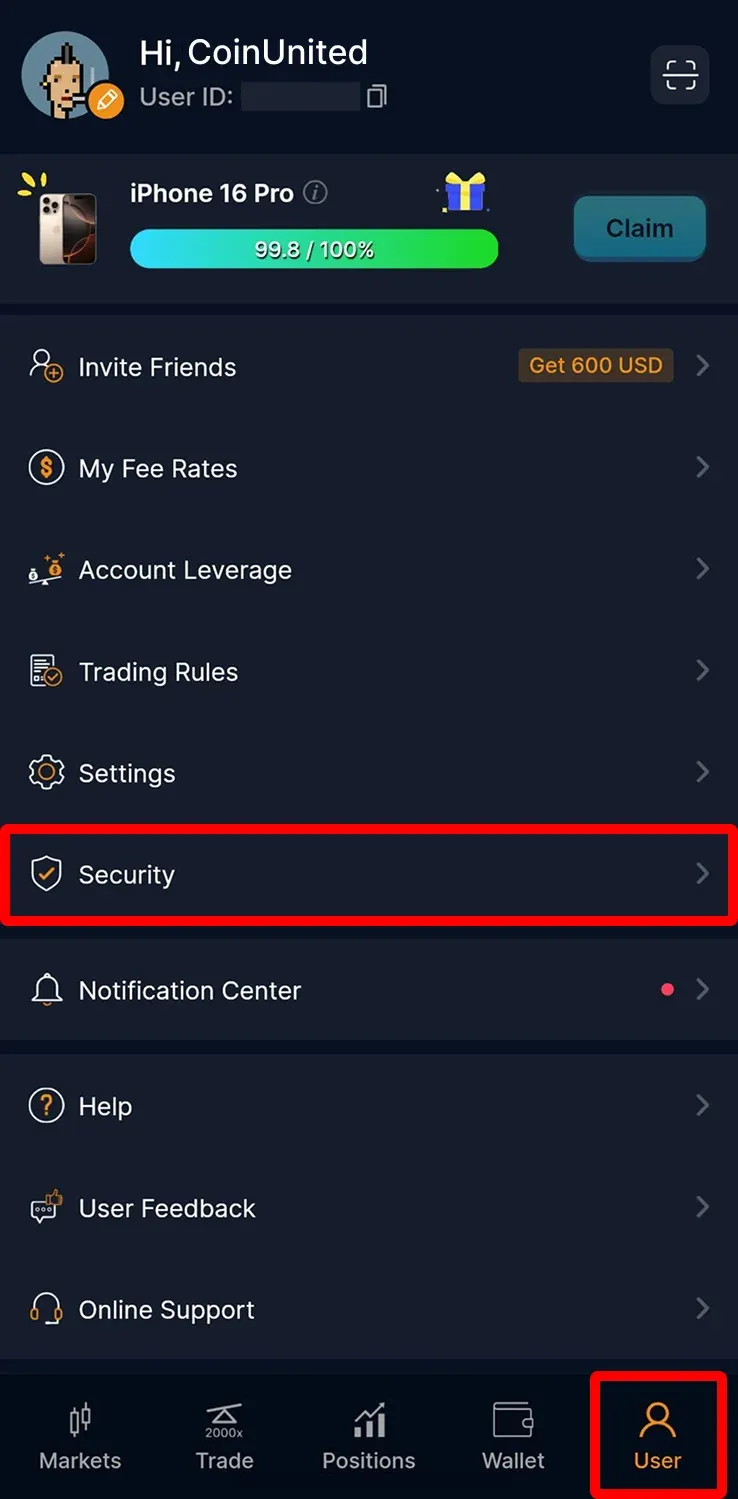
2. แตะ "Google Authentication"
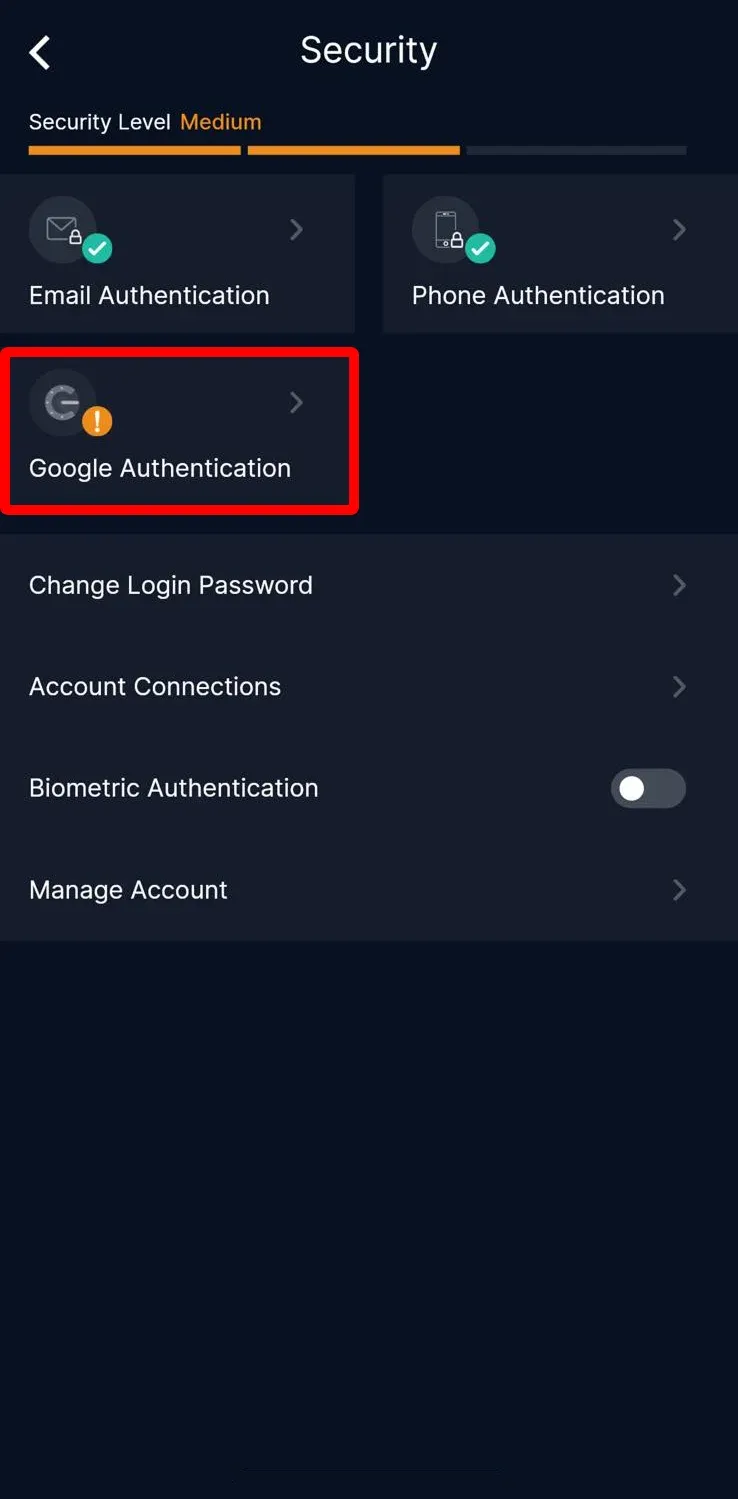
3. เปิด "Authentication APP"
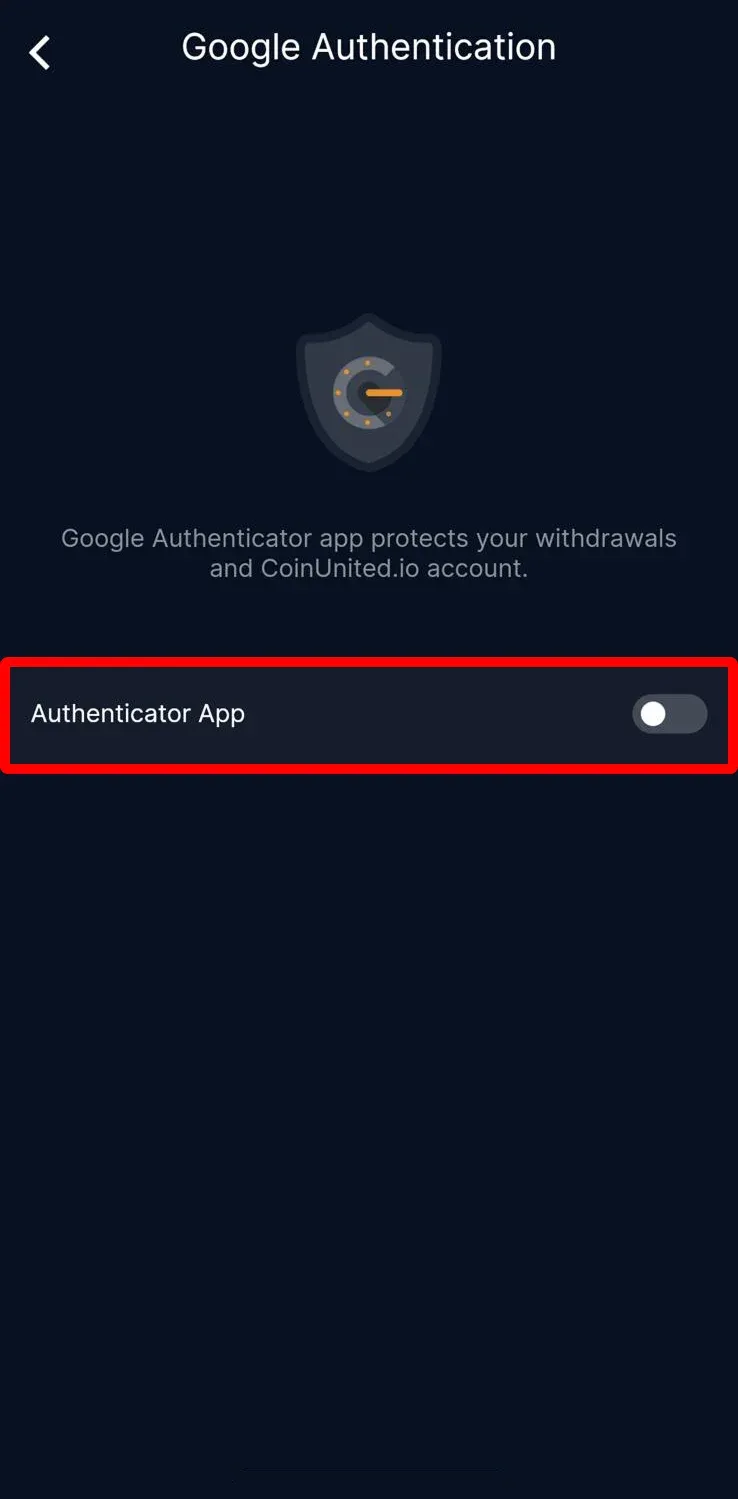
4. ใส่ sms และ email verification code จากนั้นแตะ "Submit"
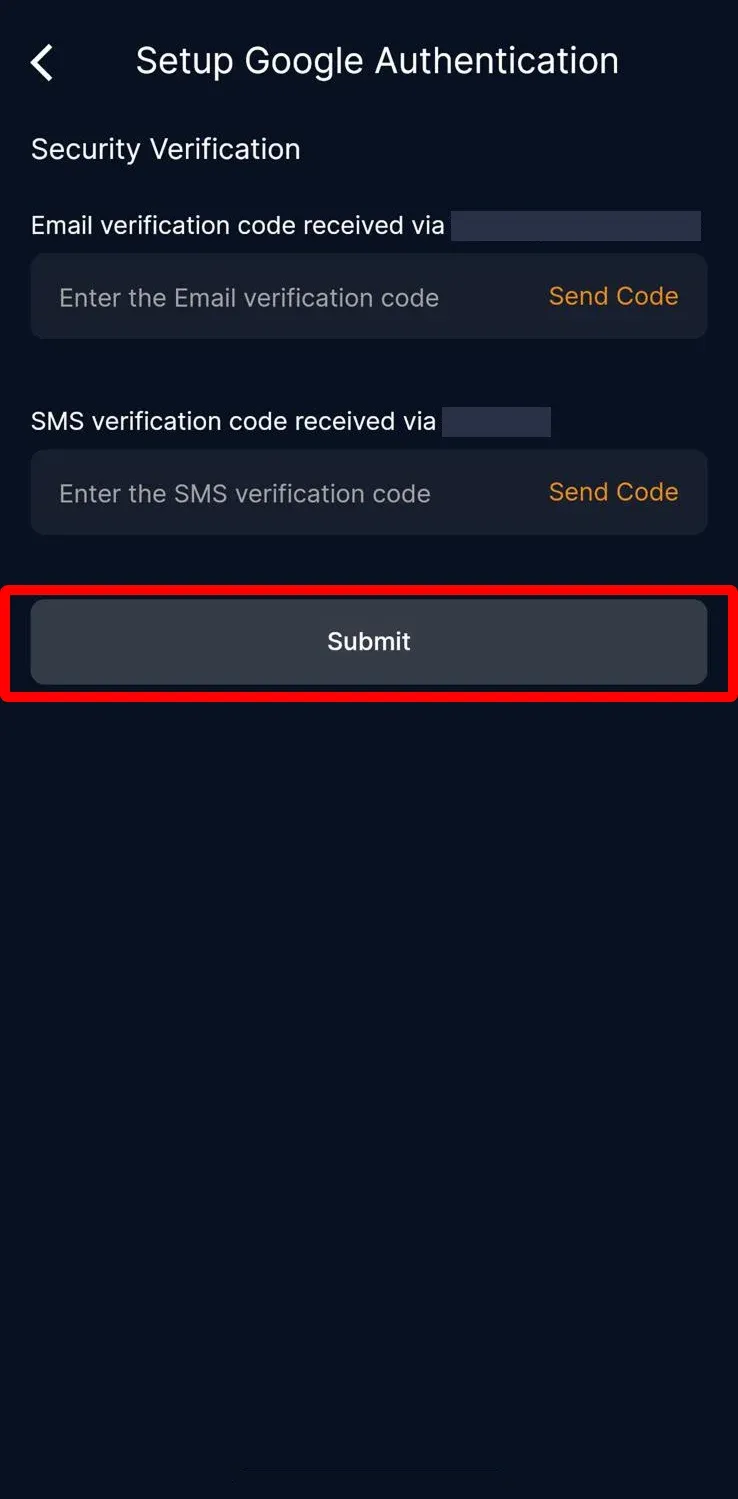
5. คัดลอกรหัส (code)
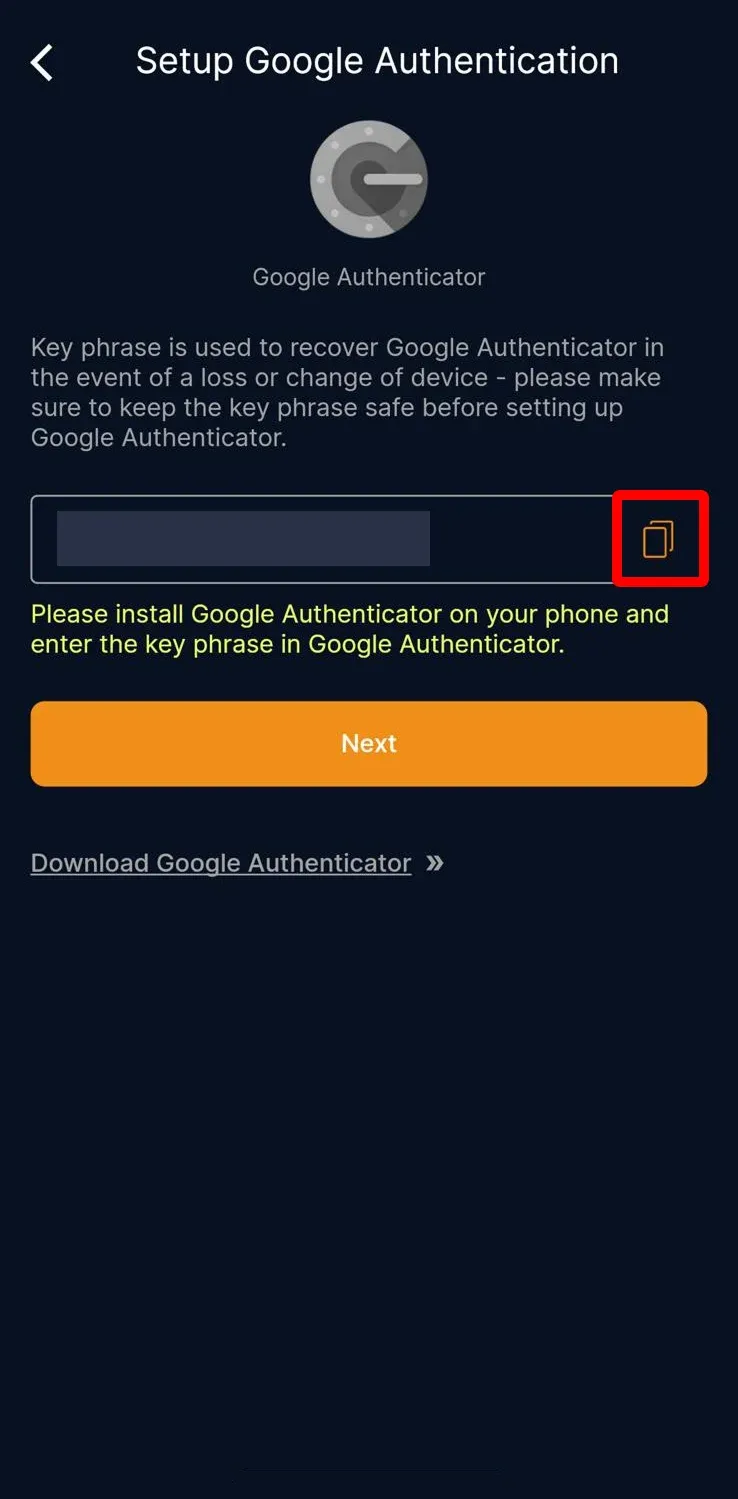
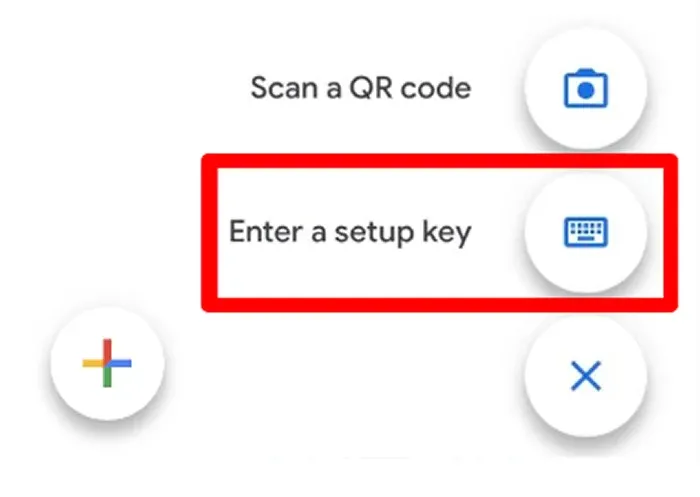
6. ดาวน์โหลดและเปิดแอป "Google Authenticator" แตะปุ่ม "+" ที่มุมล่างขวา จากนั้นแตะ "Enter a setup key"
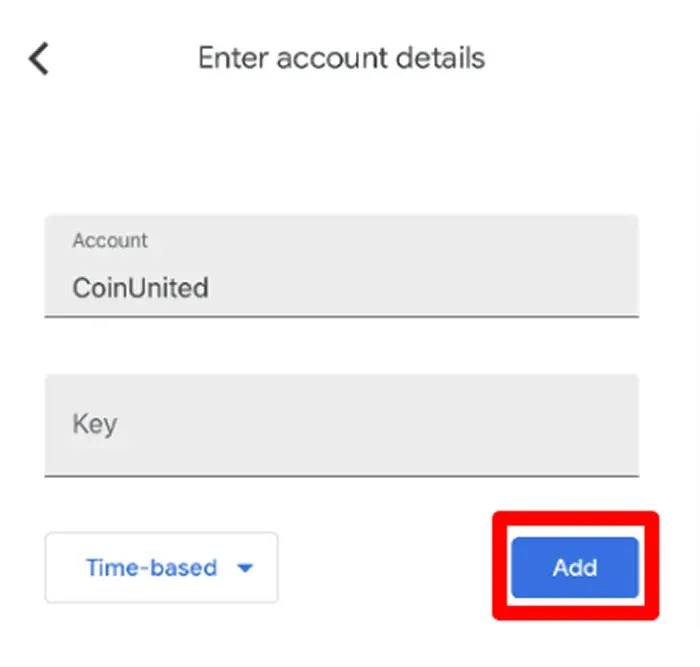
7. ในช่อง "Account" พิมพ์ "CoinUnited" และในช่อง "Key" วางโค้ดที่คุณคัดลอก จากนั้นแตะ "Add"
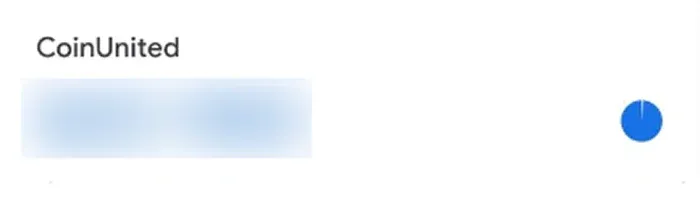
8. แอปจะสร้างรหัส Google Authenticator แบบ 6 หลัก ให้คัดลอกโค้ดนี้
9. กลับมายังแอป CoinUnited.io วางรหัส 6 หลักจาก Google Authenticator และแตะ "Submit"
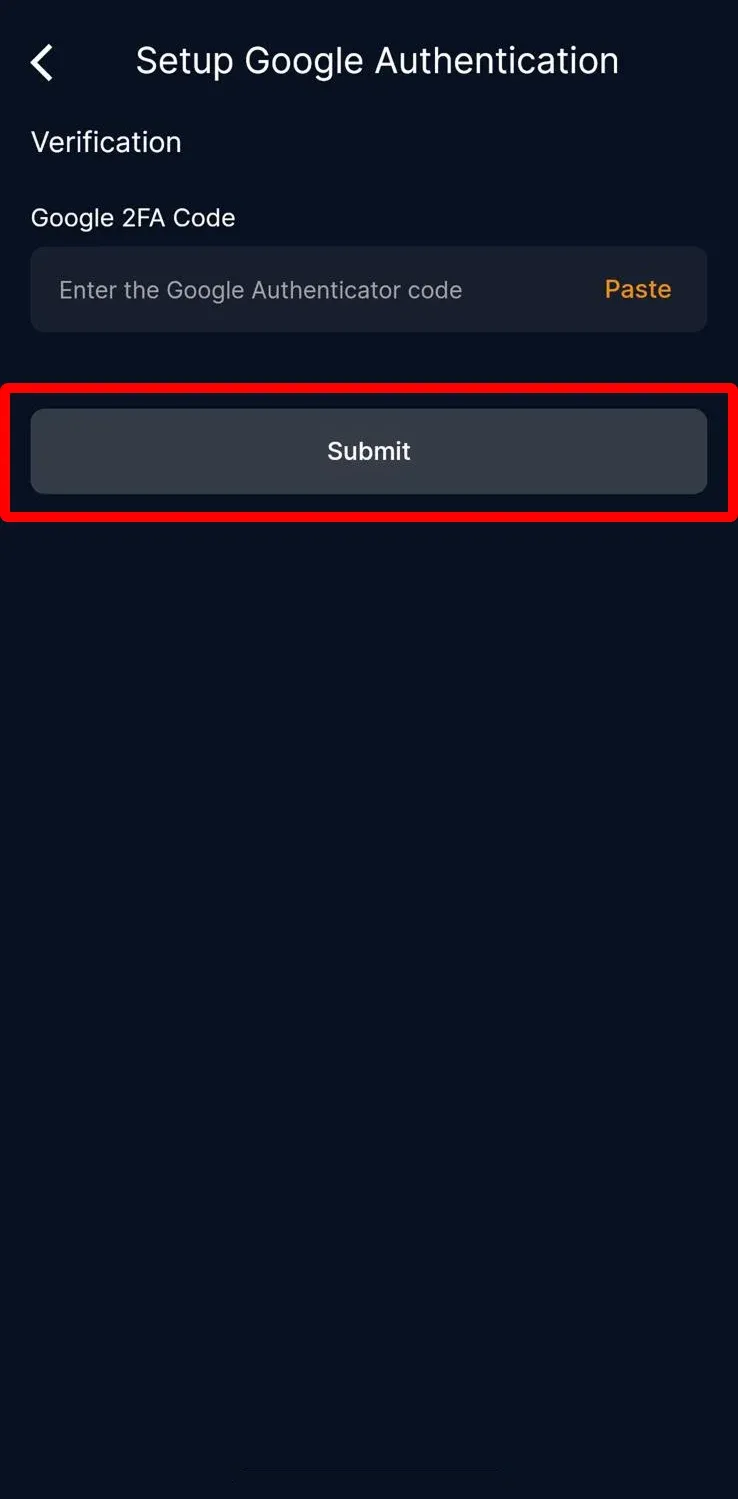
Google 2FA ของคุณตั้งค่าสำเร็จแล้ว
CoinUnited.io Web Platform
1. ไปที่ CoinUnited.io Web Platform เลื่อนเมาส์ไปที่ "User Icon" มุมขวาบน จากนั้นคลิก "Account and Security"
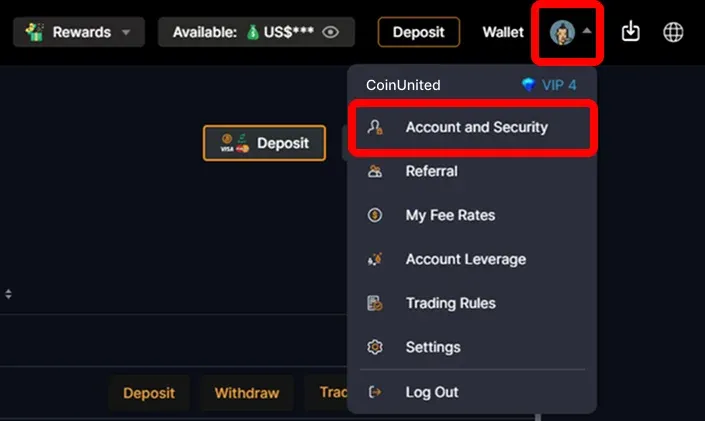
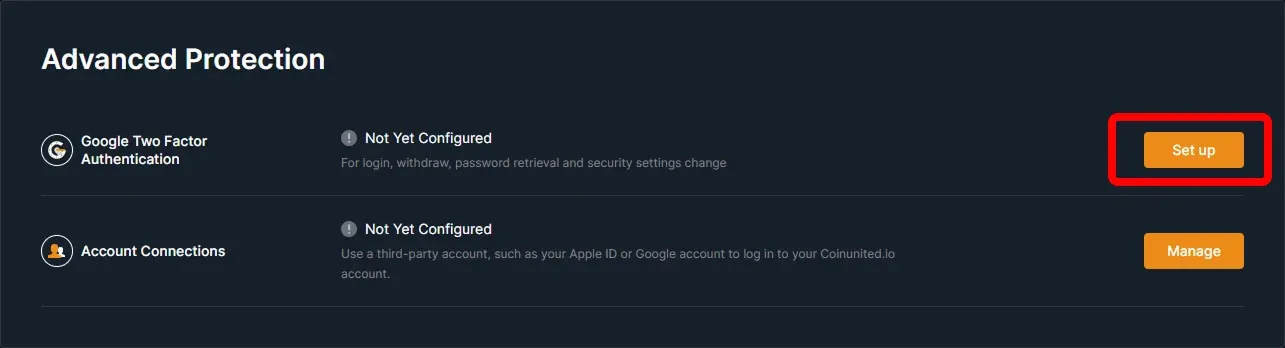
2. ไปที่ Google Two Factor Authentication แล้วคลิก "Set up"
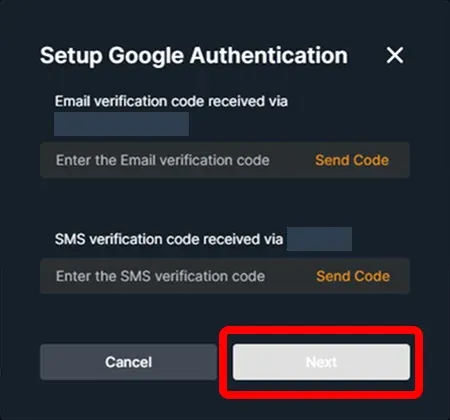
3. ใส่ sms และ email verification code จากนั้นคลิก "Confirm"
4. คัดลอกหรือสแกนโค้ด
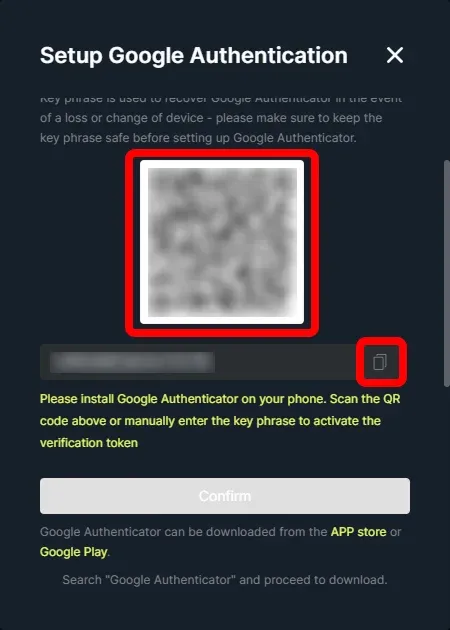
5. ดาวน์โหลดและเปิดแอป "Google Authenticator" คลิกปุ่ม "+" ที่มุมล่างขวา จากนั้นคลิก "Enter a setup key"
6. ในช่อง "Account" พิมพ์ "CoinUnited" และในช่อง "Key" วางโค้ดที่คัดลอกมา จากนั้นคลิก "Add"
7. แอปจะสร้างรหัส Google Authenticator แบบ 6 หลักให้ คุณคัดลอกโค้ดนี้
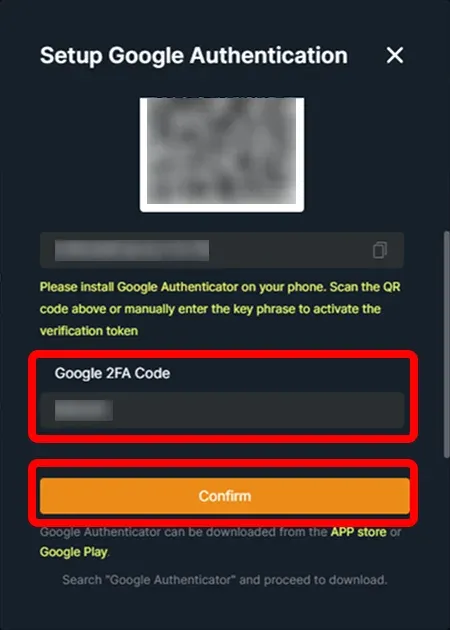
8. กลับมาที่ CoinUnited.io Web Platform ใส่รหัส 6 หลัก แล้วคลิก "Submit"
ต้องการความช่วยเหลือเพิ่มเติมหรือไม่?
หากมีคำถามหรือปัญหาเพิ่มเติม โปรดไปที่ ศูนย์ช่วยเหลือ หรือ ใช้แชทบอทของเรา เพื่อขอความช่วยเหลือ
เราพร้อมช่วยเหลือ ขอให้เทรดอย่างสนุก!
อัปเดตล่าสุด 15 เมษายน 2568
คำตอบนี้ตอบคำถามของคุณหรือไม่?